Cheat Sheet

The One Tip You Need to Know for Each Google Workspace Tool's Built-In Gemini

Get one must-know Gemini tip for every Google Workspace tool, including Drive, Docs, Sheets, Slides, and Meet, according to HubSpot Creator Jeff Su.

Explore HubSpot's AI-Powered Marketing Software, designed to help you attract, convert, and engage high-intent visitors.

Every Google Workspace tool now has Gemini built in. But let's be honest: most of you either tried it once, got a mediocre result, and moved on, or you haven't touched it at all. (No? Just me? 😛)

For most of the past year, the experience was inconsistent at best.

But with the latest round of updates, the difference is significant enough that I've started building Gemini into my actual daily workflows.

That's saying something, especially coming from someone who used to work at Google and is usually the first to complain about their own products (oops).

So instead of giving you an endless list of low-quality tips, I'm going to focus on one genuinely useful tip per tool (Drive, Docs, Sheets, Slides, Meet) so you can test the ones that matter most right away.

Before We Start: Two Things You Need to Know

These are foundational concepts that apply across all Google Workspace tools. Before we get into the tool-specific tips, you need to understand both of these first. Skip them and the tips won't make sense (or won't work at all).

Gemini side panel in Gmail

One

The side panel runs the weakest model.

When you open the Gemini side panel inside Gmail, Docs, Sheets, or Slides, it's powered by Gemini Flash, the fastest but least capable model. Think of it as the intern version of Gemini.

Some low-stakes tasks are totally fine in the side panel (e.g. "draft a reply to my aunt letting her know there's no way I'm down for dinner with her, use a friendly and conversational tone of voice"). But for anything requiring real analysis, nuance, or multi-step reasoning? Flash is going to let you down. We're talking things like:

  • Translating a formal business email with cultural nuance
  • Synthesizing 5 documents into a strategy brief
  • Debugging a complex formula

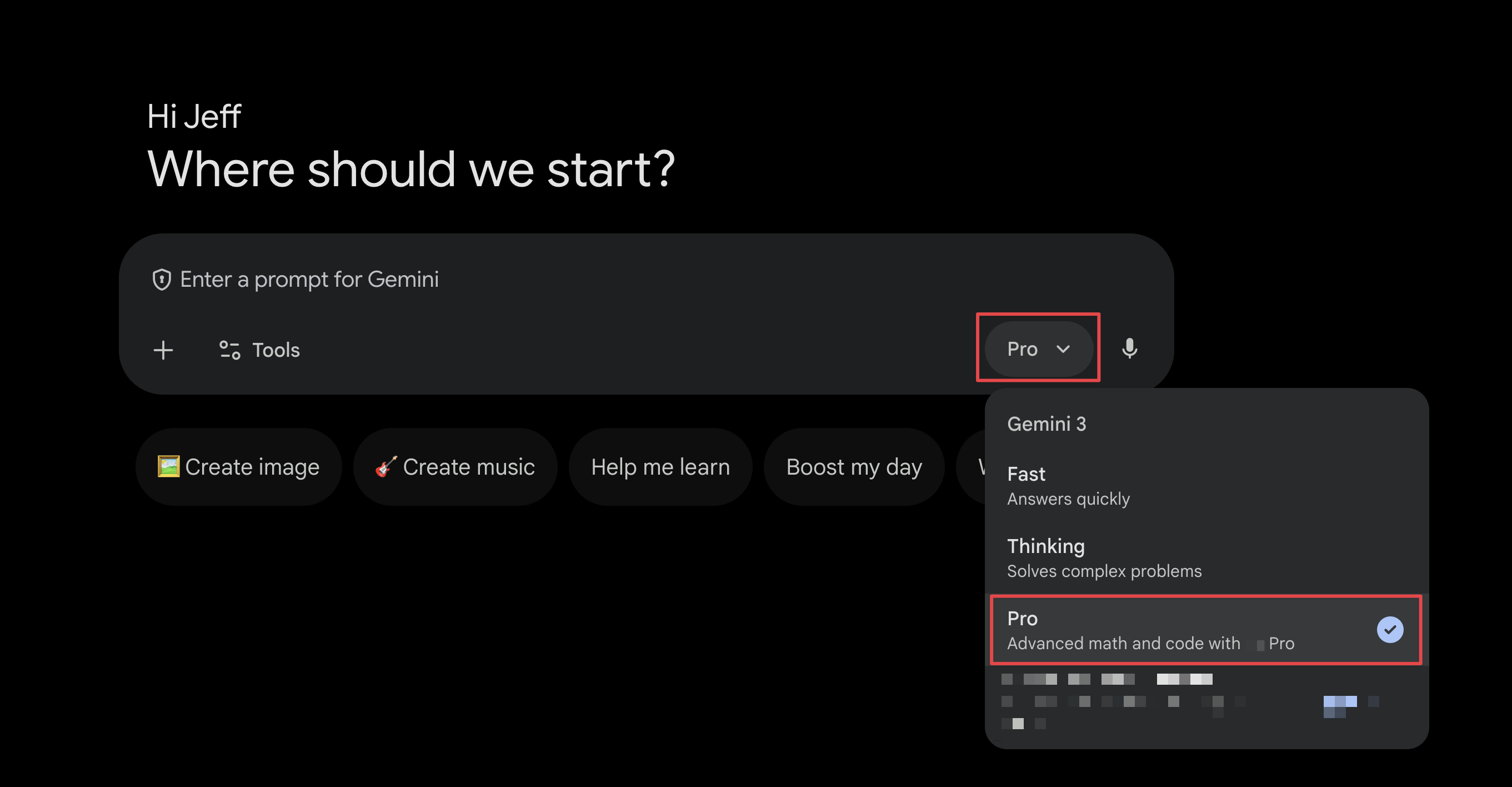
What to do instead: Switch to the Gemini web app (gemini.google.com), select the "Pro" model, and use the workspace extensions (like @gmail or @drive). You're working with the same data, but a significantly more capable model is doing the thinking.

Screenshot 2026-03-26 at 10.35.43 AM


2. You need to enable smart features first.

Before any of the tips in this guide will work, there's a setting inside Gmail that most people have either ignored or accidentally skipped during setup. I'm willing to bet you're one of them.

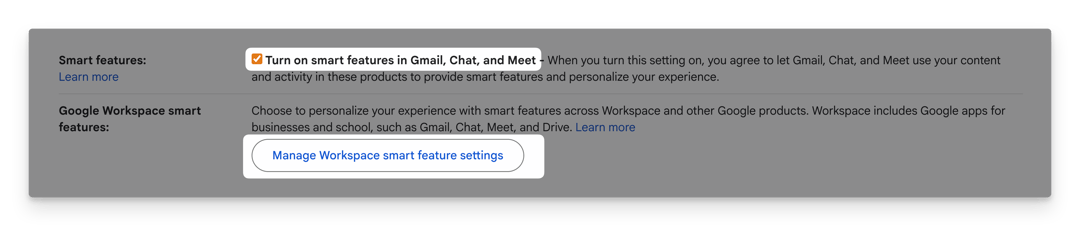
Google requires you to opt in to 2 toggles: Smart features and personalization and Smart features and personalization in other Google products. Without both turned on, Gemini can't access your emails, calendar, or Drive files. The side panel, the extensions, every single tip below: none of it works until these are enabled.

Screenshot 2026-03-26 at 10.43.11 AM


How to enable it:

Available

  • Open Gmail and click the gear icon (top right).
  • Click "See all settings."
  • Go to the General tab and scroll down to "Smart features and personalization." Make sure it's checked.
  • Check "Smart features and personalization in other Google products" as well.
  • Scroll to the bottom and click Save Changes.

That's it. Takes 30 seconds. But skip this step and you'll spend 30 minutes wondering why nothing is working.

Best Gemini Tips for Google Workspace in 2026

One

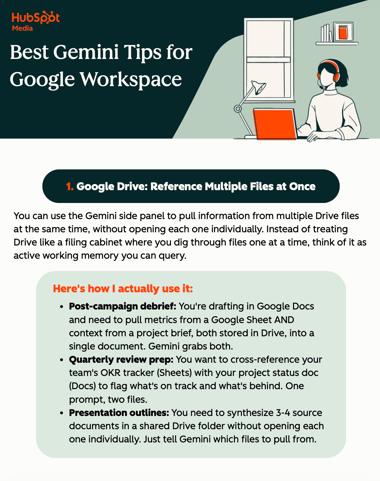
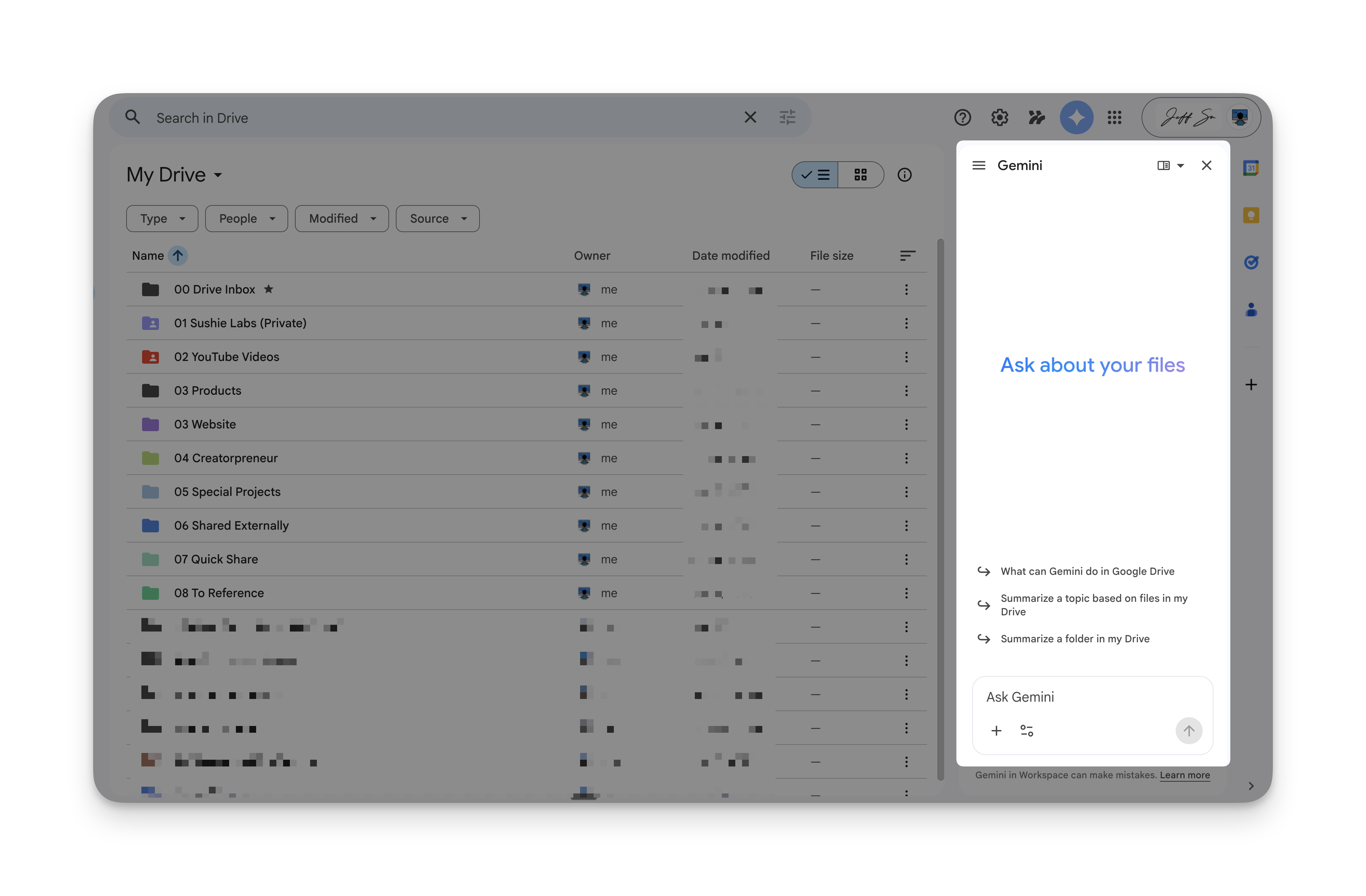
Google Drive: Reference Multiple Files at Once

Here's how I actually use it:

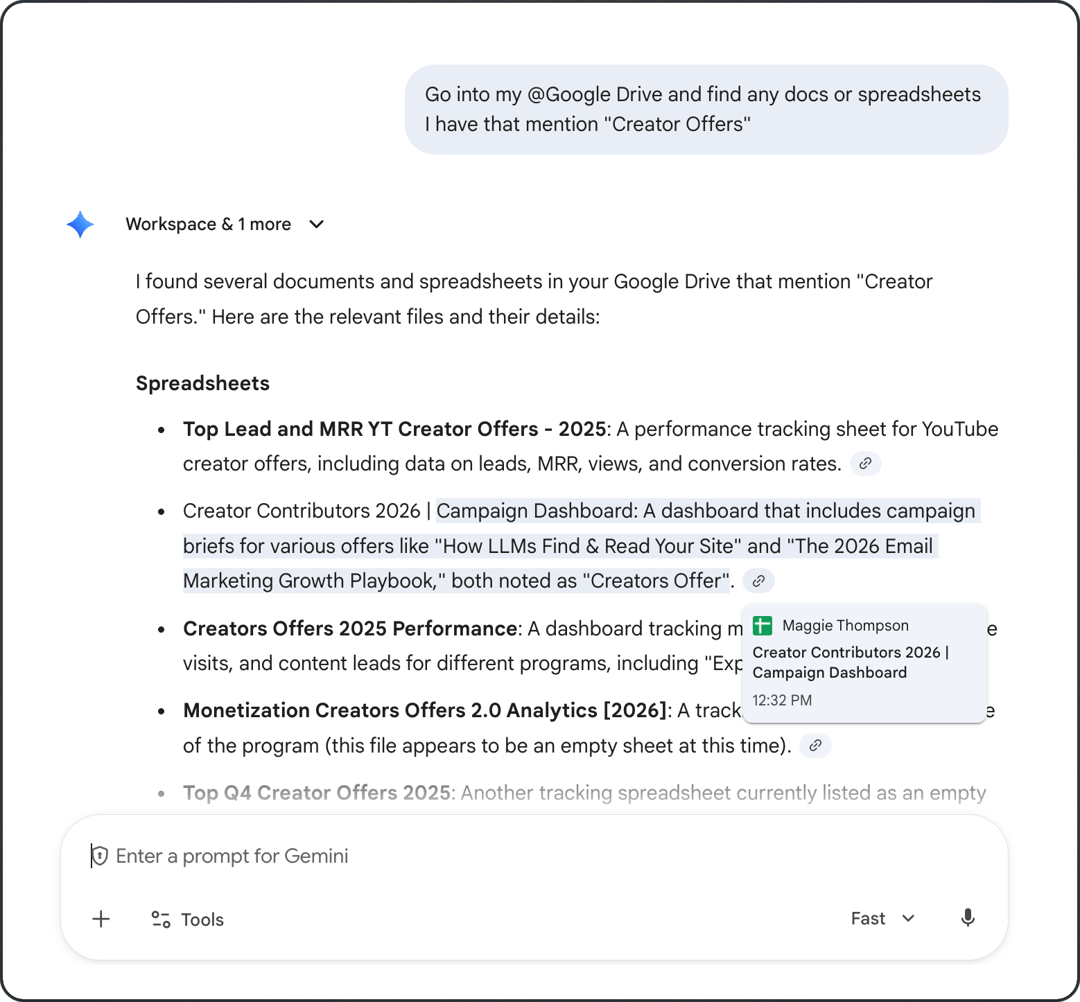
You're drafting in Google Docs and need to pull metrics from a Google Sheet AND context from a project brief, both stored in Drive, into a single document. Gemini grabs both.

You want to cross-reference your team's OKR tracker (Sheets) with your project status doc (Docs) to flag what's on track and what's behind. One prompt, two files.

You need to synthesize 3-4 source documents in a shared Drive folder without opening each one individually. Just tell Gemini which files to pull from.
google drive reference multiple files at once

Two

Google Docs: Insert an AI Summary Block

Google Docs insert AI summary block

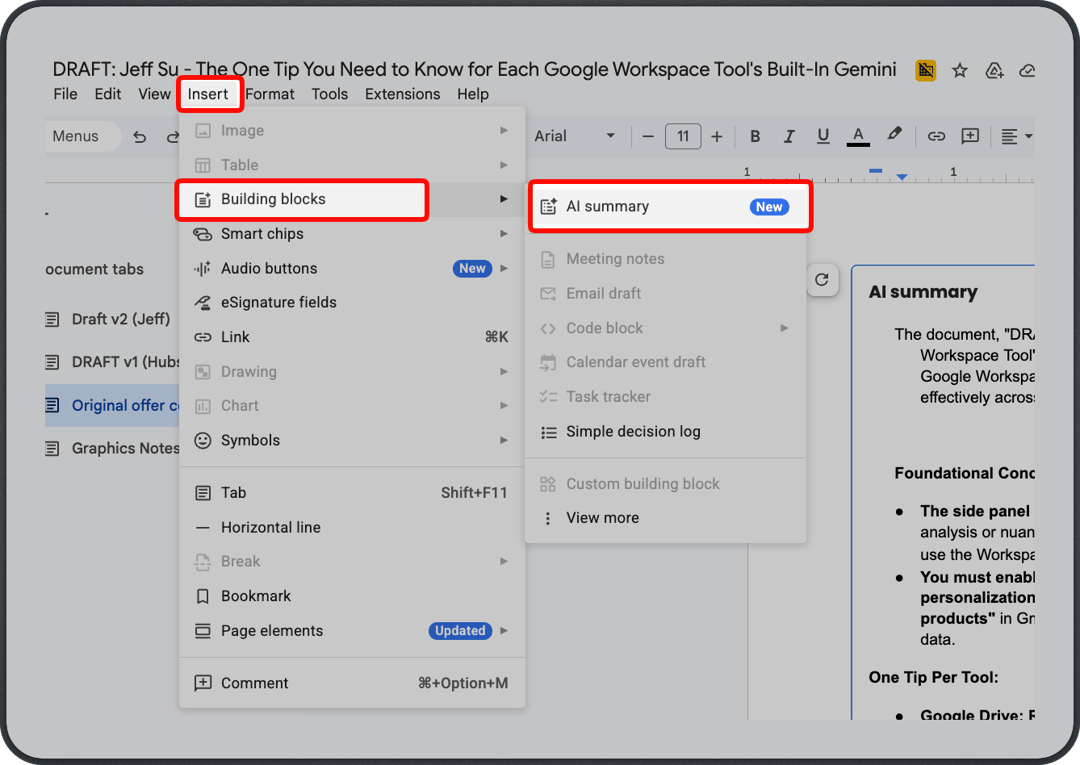
Why this is different from just asking Gemini to summarize: The summary block lives inside the document itself as a visible building block. Anyone with access can see it. It doesn't disappear when you close the side panel. And you can refresh it after any major edit, so it stays current as the document evolves. In practice, you put the summary at the top and let people self-select into the detail below.

How to insert it: Go to Insert > Building Blocks > AI Summary. Or just type @ai summary in the doc and hit Enter. For some ~~stupid~~ reason, Google buried this feature three menus deep, so most people don't even know it exists.

When to use this:

You've finished a 10-page project brief or strategy doc. Drop the AI summary block at the top so anyone opening the doc gets the key points in 15 seconds flat.

Weekly meeting notes, product requirements docs, anything that gets updated regularly. The summary block gives every new reader an instant orientation, and you can refresh it after each update.

You're reviewing a document someone else wrote (a vendor proposal, a legal review, a research report) and need to decide whether it's worth a full read. Insert the summary, scan it, and either commit to reading or move on.
If you're sharing a doc longer than 3 pages, just add it. It costs you 10 seconds and saves every reader 5 minutes.

Pro Tip

AI doc summary from Gemini

Three

Google Sheets: Describe Formulas in Plain English

describe google sheets formula in plain english with gemini

Why this actually matters: Formula syntax is the single biggest barrier to getting real work done in Sheets. Gemini removes that barrier entirely. It writes the formula AND gives you a step-by-step explanation so you're not blindly pasting something you don't understand.

How to use it: Click any cell, type =, and select "Generate formula with Gemini." Or click "Ask Gemini" in the top right and type your request in the side panel. If the formula throws an error, ask Gemini to fix it in a follow-up turn. It'll analyze the error and generate a corrected version.


When to use this:

You need a formula that sums expenses by category across multiple tabs, but you can't remember the SUMIFS syntax. Describe what you want, Gemini writes it, and you can read the explanation to verify it's pulling from the right ranges.
You need win rates, average deal size, and quarter-over-quarter growth from raw CRM data. Instead of writing 3 separate formulas from scratch, describe each one to Gemini and insert them in seconds.
You have a broken formula returning #REF or #VALUE errors. Rather than debugging manually, ask Gemini to explain what the formula is trying to do and generate a corrected version.
Be specific about what cells or ranges you're referencing. "Sum column B where column A says 'Marketing'" will get you a much better result than "add up the marketing stuff."

One thing that makes a huge difference

Four

Google Slides (via NotebookLM): Generate Styled Decks from Source Documents

google slides generate styled decks

Why this works differently than Gemini in Slides:

The tip says "Google Slides" but the actual work happens in NotebookLM. Two things set it apart:

  • Content is grounded in your documents. NotebookLM only pulls from the sources you give it, so it won't hallucinate a stat or invent a talking point. If your brief says the launch date is March 15th, that's what goes on the slide.
  • You get real design control. Paste a design system prompt into NotebookLM's custom instructions and you can control color palette, typography, layout rules, composition patterns. It turns NotebookLM from "generate me some slides" into something closer to briefing an art director.

"This is probably the most underrated tip in this entire guide."

Jeff Su
Jeff Su

YouTube Creator, AI

How to use it:

  1. Go to notebooklm.google.com and open (or create) a notebook with the source documents you want to turn into a presentation.
  2. Before generating, paste a design system prompt into the notebook's custom instructions.
  3. Ask NotebookLM to generate a slide deck from your sources.
  4. Export the result and bring it into Google Slides for final edits.

A starter design prompt

Here's what I mean by "art-direction-level control." Copy and paste this directly into NotebookLM's custom instructions. It produces a Swiss-style editorial layout with clean typography, strong visual hierarchy, and a professional business tone:

You are a top art director leading a "new economy business media" publication. Based on the following design definition, generate a visually focused, high-sensibility presentation slide that sparks intellectual excitement in business professionals.

[Important: Output Format Rules]

  • Complete Exclusion of Markdown Symbols: Do not include symbols like "#" for headings or "*" for emphasis in the slide text under any circumstances.

  • Plain Text Only: Text displayed on the slide must consist solely of pure text without any decorative symbols.

[Special Specification for Cover Slide: Make This the Highest Quality]

  • Design Philosophy: Draw inspiration from "Swiss Style (International Typographic Style)" or "Bauhaus."

  • Layout: Ban simplistic "centered alignment." Create tension with asymmetrical placement. Use a grid system to position the title extremely off to the top left or bottom left, or craft bold negative space for refinement.

Title Copy Design: 
  • Main Title (Ultra-Large, Short Phrase): Make it a visual anchor with a short word or phrase of about 2-5 words.
  • Subtitle (Ultra-Small, Benefit-Driven): Carve into the reader's pain points and hint at resolution with a concise sentence.Composition Ratio: Punch the eyes with the main title, stab the brain with the subtitle.

[Overall Design Definition for All Slides]

1. Core Theme: Smart and pop business infotainment (intellectual curiosity x entertainment)

2. Color Palette:

  • Background Color: White (#FFFFFF) or Cool Gray (#F5F5F5)

  • Text Color: Jet Black (#111111)

  • Accent Color: Electric Yellow (#FFCC00) or Alert Red (#FF3333)

3. Visual Style:

  • Adopt the design philosophy of a smartphone-first economic media.

  • Use images like monochrome cutouts of people or stylish photos with blown-out backgrounds to emphasize the subject.

  • Highlight key numbers or keywords with fluorescent marker-style lines (yellow background) to create rhythm.

4. Typography (Text as Graphic):

  • Position headlines at an ultra-massive size occupying 30-50% of the slide's area.

  • Extreme Jump Ratio: The size ratio between headlines and body text must be 10:1 or more. No half-hearted size differences allowed.

  • For headlines, use extra-bold sans-serif to treat them as a surface, and tuck ultra-thin English fonts into the gaps for a sense of airiness.

5. Overall Structure:

  • Strictly adhere to "1 slide = 1 message."

  • Layout is a binary choice between negative space or text. Draw the eye through contrasts of text-packed areas that fill the screen and vast empty voids.

  • Place the conclusion with impact in the center of the slide, or position it spilling off the edge for visual effect.

This is just one style. For more options, check out this open-source design prompt library. Swap in any prompt that fits the tone of your presentation.


When to use this: 

You need to turn a 10-page strategy doc into a leadership deck. Upload the doc to NotebookLM and generate slides grounded in the actual document, instead of starting from a blank Slides template.

You need a client-facing deck that pulls from a brief, a budget spreadsheet, and a timeline. Upload all sources and let NotebookLM pull from each one.

You're building an internal training deck and need a consistent visual style across 15+ slides. The design system prompt keeps every slide on brand without manual formatting.

Five

Google Meet (via NotebookLM): Build a Searchable Meeting Archive

google meet searchable meeting archives

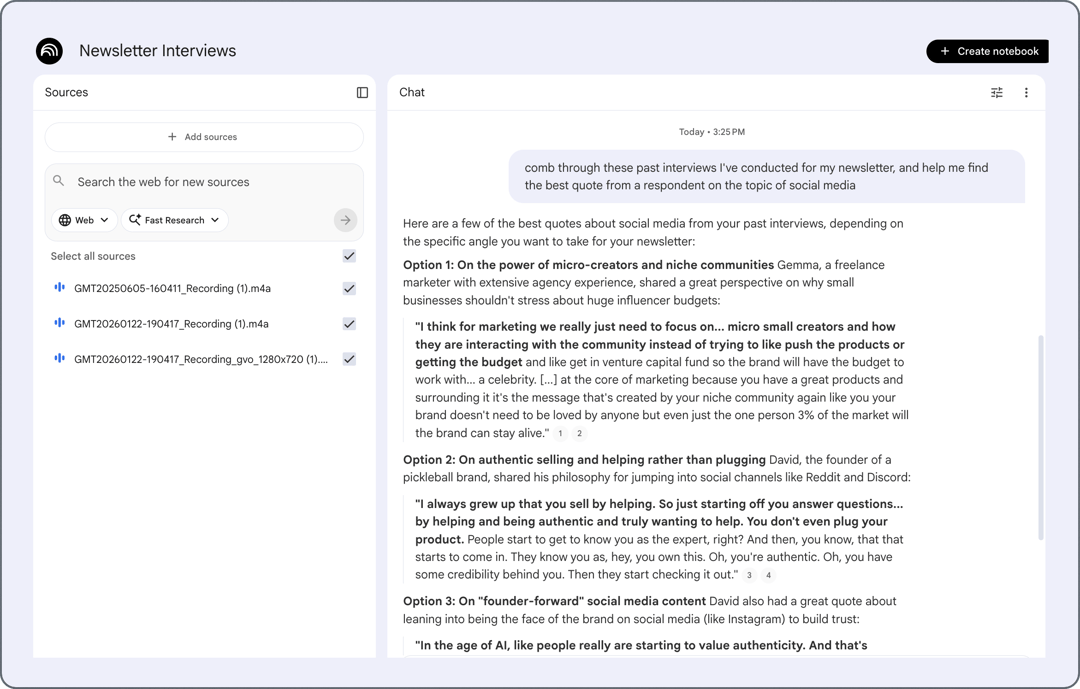
Why this is a different game: Every meeting tool generates notes now. The difference is what happens after. Most AI-generated meeting notes end up as individual docs that nobody opens again. By feeding them into NotebookLM as sources, you turn months of meetings into a single place you can query in plain English. And because NotebookLM only answers from the sources you give it, it won't make things up. If it says a decision was made, you can trace it back to the specific meeting doc.

When to use this:

You need to check what was committed to 3 weeks ago without scrolling through individual docs. Ask NotebookLM and it pulls the answer directly from that week's notes, with a citation you can click to verify.
You need to compile all decisions and status changes across 12 weeks of project meetings. Instead of opening each doc, ask NotebookLM to summarize across all of them.
You want to give a new team member context on what the team has been working on. Share the notebook so they can ask their own questions and get grounded answers from actual meeting records, not someone's memory.

Sample queries to try once your notebook has a few weeks of notes:

  • "What did we decide about the Q2 launch timeline?"
  • "What action items has the marketing team been assigned in the last month?"
  • "Summarize the key decisions and milestones across all meeting notes from this quarter."