

Free Guide

20+ NotebookLM Tricks to 3X Productivity

Transform your content workflow with NotebookLM's hidden features. Get 20+ expert tips from Matt Wolfe for maximizing AI-powered content creation.

Explore HubSpot's AI-Powered CRM, designed to turn creative AI ideas into automated workflows across marketing, sales, and service.

Look, I'm as enthusiastic about ChatGPT and Claude as anyone. But, NotebookLM might be the most powerful AI productivity tool nobody's talking about.

This free Google tool has genuinely transformed how I handle research, content creation, and information management.

The other day, my son walked in while I was working on my computer. We'd been talking about Saturn recently, so I plugged the topic into NotebookLM on a whim. We ended up spending the next two hours completely absorbed, learning everything about Saturn through a custom-made podcast and accompanying video.

My job is to test AI tools. I've been doing it nonstop for years now. I run Future Tools, where I curate and review AI tools, and I co-host The Next Wave podcast about the latest developments in artificial intelligence. So when I tell you NotebookLM stands out, that's coming from someone who's seen it all. 

Today, I want to show you everything you can do with NotebookLM from top to bottom. And yes, it's completely free.

Matt Wolfe is the creator of FutureTools.io, a curated platform that helps creators, entrepreneurs, and tech enthusiasts discover the best AI tools. He is also the host of a fast-growing YouTube channel where he explores the latest in AI tools, emerging tech, and AI weekly news.
 

Who is Matt Wolfe?

Section 1

Why NotebookLM Should Be in Your Tech Stack

NotebookLM uses Google's Gemini AI models, but in a fundamentally different way than most AI chatbots. Instead of pulling from the entire internet or its training data, NotebookLM focuses exclusively on the information you give it. Think of it as your personal AI research assistant that only knows what you teach it.

Here's what makes this approach powerful: You upload your sources — articles, PDFs, YouTube videos, audio files, whatever — and NotebookLM uses only those sources to answer your questions. This grounding in your specific documents is its superpower. 

Setting data sources dramatically reduces AI hallucinations, instances in which an AI confidently makes up incorrect information. Beyond that, every response includes citations showing exactly where the information came from.

NotebookLM interface showing uploaded sources in left sidebar, chat conversation in center panel with citation numbers visible, and notes panel on the right side-1
This is particularly useful when working on video scripts or blog posts. I can upload all my research materials, and instead of switching between tabs and documents, I just ask NotebookLM questions. It pulls from my curated sources and tells me exactly which document the information came from.

Section 2

How to Get Started

Getting started with NotebookLM is straightforward. Head over to notebooklm.google.com, and you're ready to go.

When you create a new notebook, you'll see the “add sources” screen with tons of options. Upload PDFs, text files, markdown, and even MP3 audio files. Connect it to Google Drive to pull in documents and spreadsheets. Feed it website links or YouTube videos, and it'll grab the transcripts. Or, just copy and paste text directly.

If you don't have specific materials ready, use the “discover sources” feature. Just enter a topic, like “AI productivity tools,” and NotebookLM will search and present relevant online resources you can import directly into your notebook with a single click.

NotebookLM add sources dialog showing multiple input options, including file upload, Google Drive, website URLs, YouTube videos, and text paste

Section 3

Best Practices for Getting Started

The better your input sources, the better NotebookLM's outputs will be. I always prioritize original sources over aggregator sites or secondary sources. Research papers, company blogs, and official documentation are all great options.

You can create unlimited notebooks, so I organize mine by project or topic. For example, I have separate notebooks for AI productivity research, my Future Tools website updates, and various video projects.

Here's something critical to understand: When you ask NotebookLM a question, the response disappears when you leave and come back. If you want to keep something, you must click "save to note." This saves the response to your notes panel.

NotebookLM lets you convert any saved note into a source. Click the three dots next to a note and select "convert to source." Now that response becomes part of the knowledge base that NotebookLM uses to answer future questions.

If you hit the 50-source limit, here's a pro tip: Merge multiple documents into one source. Take two or three articles, paste them into a single document, and upload the resulting document as a single source. As long as you stay under 500,000 words per source, you're good.

Section 4

Everyday Productivity & Knowledge Management

NotebookLM is more than a research tool. It can become a central hub for your personal and professional knowledge, a private search engine for your own information.

I've started uploading all my user manuals for my equipment — cameras, microphones, stream deck, mixing board, all of it — into one notebook. Now, when I run into issues, I just ask NotebookLM instead of hunting through PDFs. For example, when my camera kept focusing on the background instead of me, I asked NotebookLM what to do. It pulled the exact settings I needed to adjust from my Sony FX3 manual.

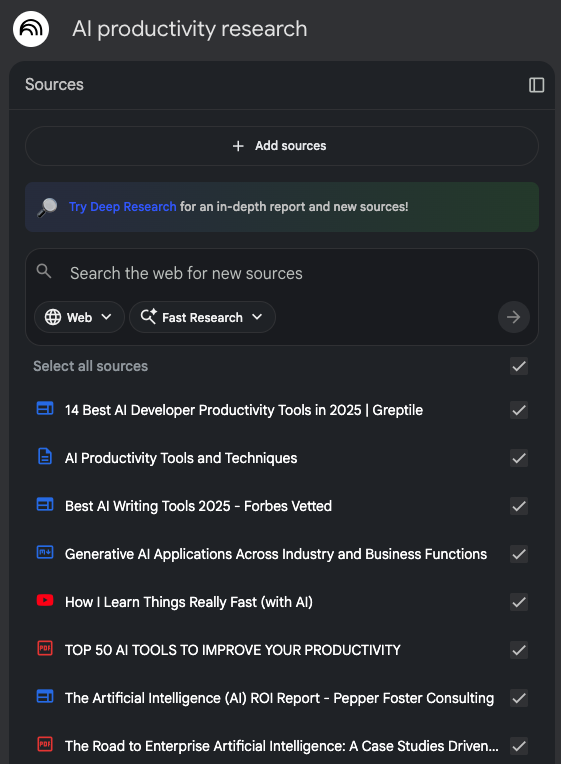
NotebookLM notebook titled AI Productivity Research showing multiple source types, including PDFs, web articles, and text documents in the left sidebar

Let's say you're researching AI productivity tools for a blog post. You can pull in article transcripts, YouTube videos, your own notes, and any resources related to that project, and then query that information however you want. It becomes your project brain.

If you run a business, you can upload all your training documents, SOPs, and support documentation into one place. Then share access to that notebook with team members. Now, when someone has a question, they can ask the notebook instead of interrupting you. It responds based on your actual documentation.

This is particularly powerful for onboarding. New team members can chat with the collective knowledge of your company.

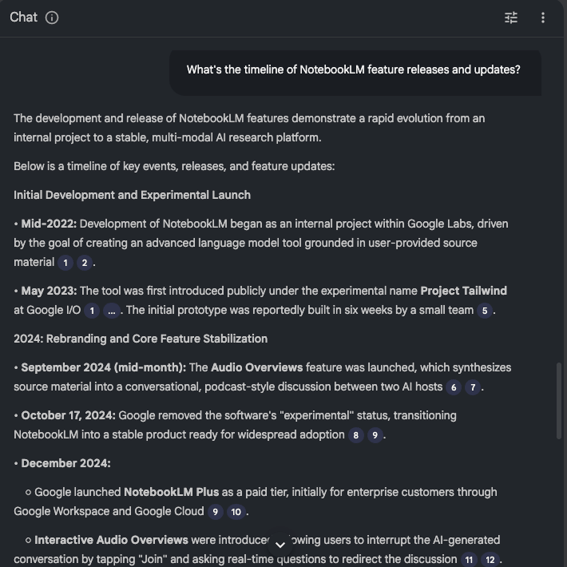
NotebookLM generated timeline showing chronological events with dates and citations from source materials

NotebookLM can create timelines from your sources. For example, I asked it to make a timeline of NotebookLM feature releases based on video transcripts and articles. It generated a clear, chronologically organized breakdown of everything that happened.

Here's a bonus tip I learned from my friend Tina Huang: Take the timeline response, copy it, and paste it into Google Gemini. Then ask Gemini to create an interactive visual timeline. You get a much more polished visual representation to share.

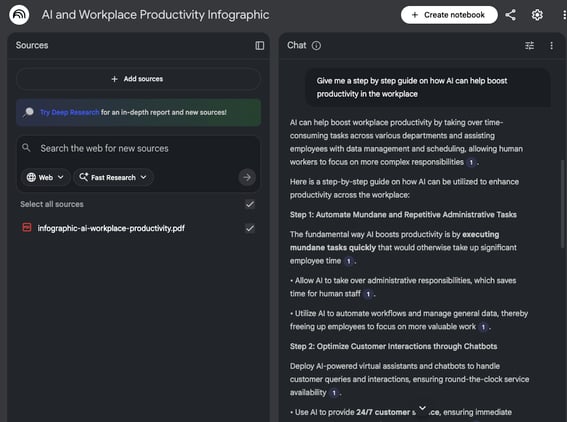
NotebookLM interface showing a PDF converted from an image in the sources list with a question and response about the image contents

NotebookLM can understand the contents of images. I tested this with an information-dense infographic from MarketingProfs. Images can't be uploaded directly, but here's the trick: save or export the image as a PDF, then upload that. NotebookLM reads the PDF and can pull information from whatever's in the visual — text, charts, or diagrams.

I asked it for a step-by-step guide based on the infographic, and it broke down all the information without me having to squint at the graphic.

I journal almost daily, and I've started uploading all my journal entries into NotebookLM. I also upload audio “brain dumps” that I record on my phone — just raw, unfiltered thoughts. Then, I can have conversations with myself, generate audio overviews of my thinking patterns, or create webs showing where my thoughts lie.

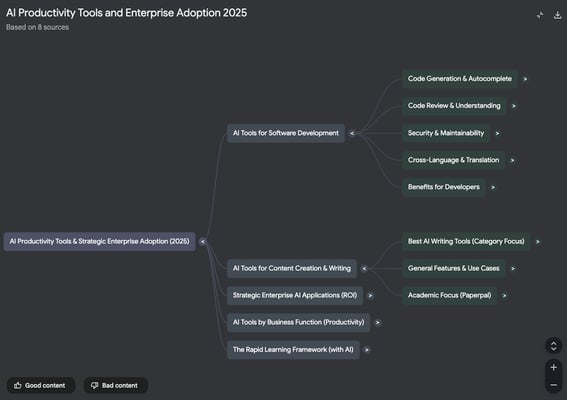
Mind mapping shows my different areas of focus. I can unlock business strategies, personal habits, creative insights, and projects I'm working on. I can dive deeper into each branch to better understand my thinking.

The process is incredibly therapeutic and valuable. NotebookLM highlights blind spots I didn't realize I had.

NotebookLM generated mind map showing hierarchical topic structure with expandable branches for diving deeper into subtopics

For students, this is a game-changer. Click into the Studio panel, and you'll see all the ways NotebookLM can transform your materials. You can make flashcards, quizzes, study guides, mind maps, and more.

I created flashcards and a quiz on AI productivity. The flashcards work exactly like you'd expect — question on one side, answer on the other. The quiz generates multiple-choice questions that test your knowledge of the material.

When you select an answer, NotebookLM provides immediate feedback. If you get it wrong, it explains the correct answer and why, turning the quiz into a learning tool rather than just a test.

The study guide provides a comprehensive overview, including a short quiz, answer key, essay questions, and a glossary of terms. That’s everything you'd need to understand the basics of your topic.

Section 5

Content Creation & Repurposing

For content creators, NotebookLM isn't just a productivity tool. It's a full-blown content engine. These are the areas where its capabilities truly shine.

Audio Overviews (AI-Generated Podcasts)

Video Overviews

Customers_linear_llustrations_Characters

NotebookLM’s Infinite Repurposing Possibilities

Think about all the repurposing potential here. You can:

  • Feed NotebookLM a YouTube video and turn it into a written blog post.
  • Turn a video into an audio podcast.
  • Start with a podcast and turn it into a written article.
  • Convert a podcast into a video.
  • Turn a podcast into a second podcast where AI hosts comment on your original podcast.
  • Feed it audio notes of you rambling and turn that into a blog post, video, or podcast.
  • Convert written blog posts into videos.
  • Convert written posts into audio podcasts.
  • Turn everything into social media posts for LinkedIn, Facebook, X, Threads, Instagram.

I've just given you nearly 20 ideas for repurposing content from one style to another. And this is pretty obvious stuff — there are wild, creative use cases out there I haven't even thought of.

Section 6

Pro-Level Tips for Power Users

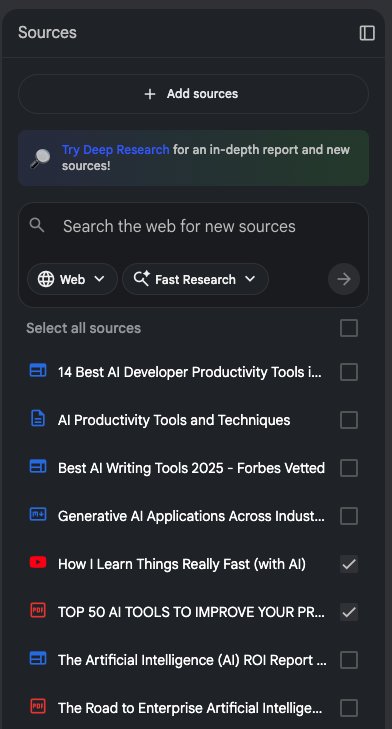
NotebookLM sources sidebar showing checkboxes next to each source for selecting which sources to use in queries-1

Next to each source in the sidebar is a checkbox. Uncheck specific sources to exclude them from your queries. Or, unselect all of them and have NotebookLM look at just one source at a time. This lets you really tailor the information that the chat grounds itself in.

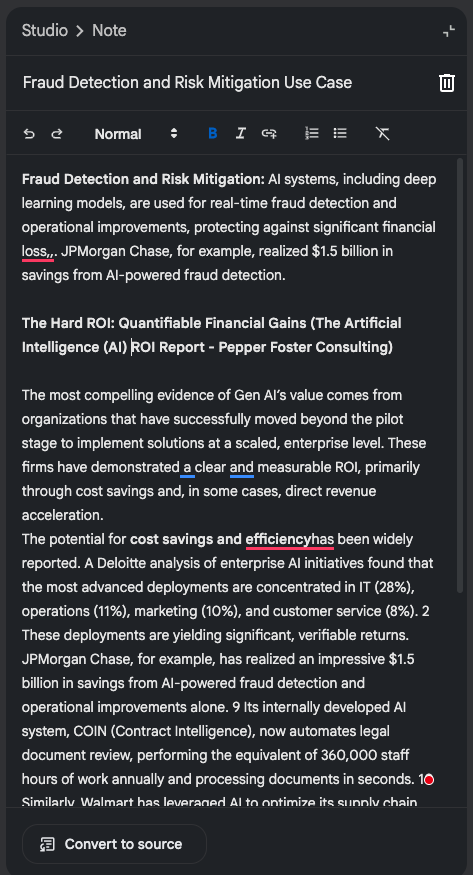
NotebookLM notes panel showing add note button and custom user-created note alongside AI-generated responses

Notes aren't just for AI-generated responses. Add your own by clicking "add note" in the notes panel, which opens a simple text editor for your personal thoughts.

These notes stay separate from your sources unless you click the “convert to source” button. Then they become part of what NotebookLM references.

Sometimes, you'll run into a paywalled article that you can't add via its URL. The workaround is simple: If you have access to the article, just copy the entire body of text, select the “copied text” source option in NotebookLM, and paste it in. The content is now a usable source in your notebook.

Don't just stick to PDFs. Give it videos, blog posts, audio files, spreadsheets, and copied text from various sources. Feed it as much variety as you can to get the best results.

Share notebooks with your team to turn NotebookLM into a collaborative knowledge base. Everyone gets access to query the same information

PLACEHOLDER_Global_Content_Linear_llustrations_Characters

Bonus Tips

  • Check sources before big projects. Always verify your sources are high-quality before generating study materials or content. Remember: garbage in equals garbage out.
  • Export audio and video. Download your audio and video overviews if you want to use them elsewhere. They're not saved in the cloud indefinitely.
  • Use discover sources for research. When starting a new research project, use the "discover sources" feature to find relevant materials quickly.
  • Name everything clearly. Good naming conventions for notebooks, notes, and sources make everything easier to find later.
  • Remember it's temporary. Chat responses disappear when you leave the notebook. Always save essential responses to notes.

Transforming NotebookLM From a Tool Into a Powerhouse

NotebookLM is one of the most underrated, underutilized, and under-talked-about AI tools available today. But here's what really gets me excited: This tool represents where AI is actually heading.

We're moving past the era of generic AI assistants that know everything about nothing. The future is personal AI systems that know everything about your specific world — your projects, your research, your thinking. NotebookLM is an early glimpse of that future.

You're not just chatting with an AI trained on the entire internet. You're creating custom AI assistants that are experts in exactly what you need them to be experts in. Upload your company's documentation, and you have a custom support agent. Upload your research materials, and you have a custom research assistant. Upload your journal entries, and you have a custom therapist (sort of).

Beyond that, NotebookLM solves the trust problem. When ChatGPT or Claude gives me an answer, I'm never quite sure whether it's hallucinating or drawing on outdated training data. With NotebookLM, I know exactly where every piece of information comes from because I put it there. The citations are fundamental to making AI actually useful for serious work.

The audio and video overview features hint at another major shift: AI as a creative multiplier. You can take raw information and instantly transform it into different formats for different audiences. That amplifies human creativity. You still need to curate the sources, ask the right questions, and decide what's worth creating. But the mechanical work of reformatting and repurposing? That's handled.

And, NotebookLM is completely free right now. Google isn't charging for this yet, so now is the time to integrate it into your workflows. Even if they do charge eventually, I'd pay for what this tool does.

If you want to stay ahead of where AI is going, check out my website, Future Tools, where I curate the latest AI tools and share what's actually worth your time. I also have a free newsletter covering the same ground. 

The AI landscape moves fast, but tools like NotebookLM show us where we're headed: more personal, more transparent, more useful.
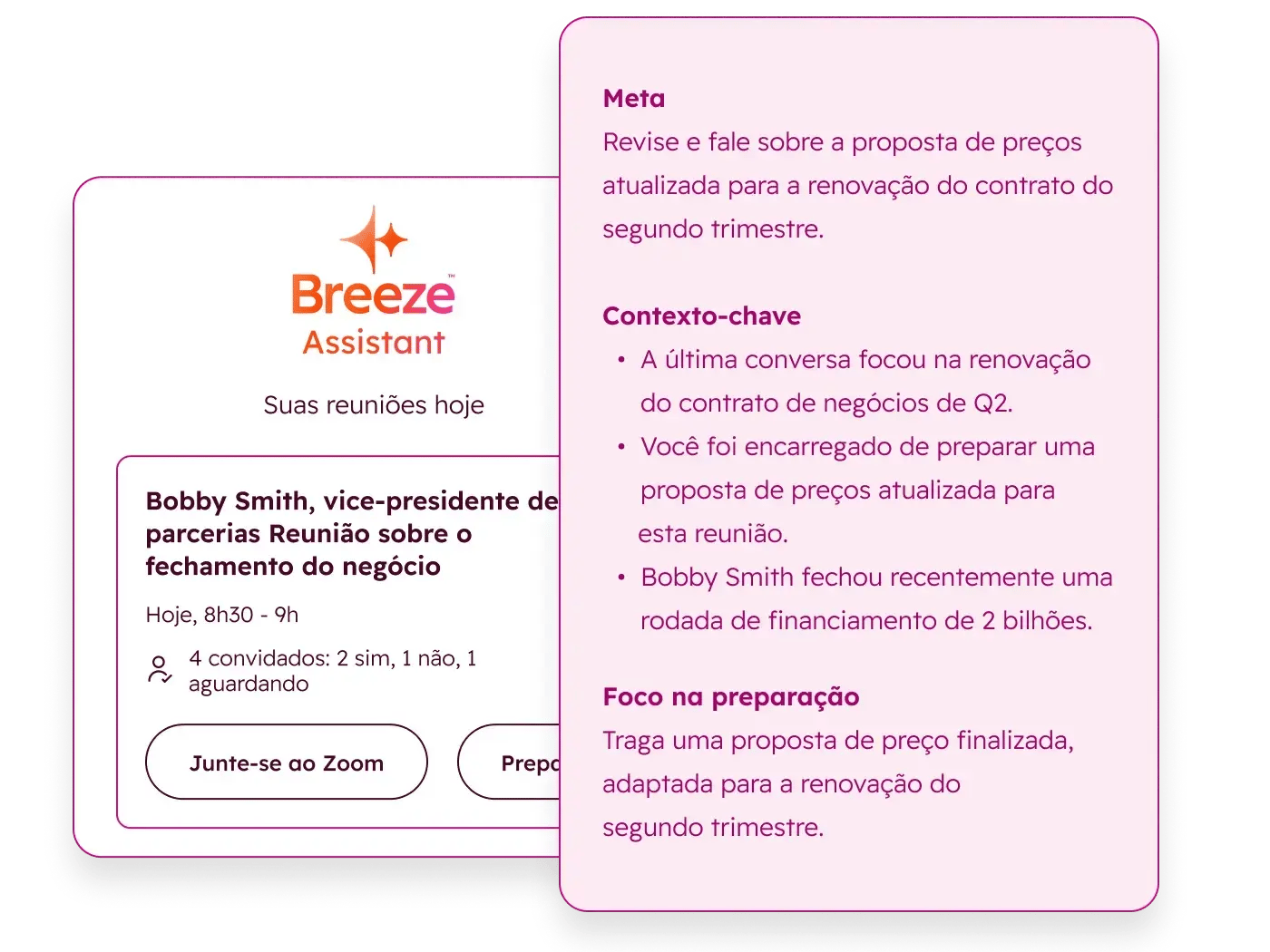


Breeze – Meeting Insights_pt

HubSpot’s Breeze: AI That Works Where You Do

AI tools built into HubSpot to help you work faster, save time, and focus on what matters most. From writing to reporting, Breeze helps you move quicker and get more done.